

SUpplier Hub
One System.
One Process.
OneView.
Centralised. Fully Compliant. Completely under control.
GETTING STARTED
Supplier Users

GETTING STARTED
There are 3 types of supplier users
- Supplier Admin-
Full permission for all supplier functions - Account manager-
Views jobs, and creates submissions, enters and views status of T&E cards, views supplier invoices. Cannot add or edit users - Supplier Finance-
Views contracts, T&E and Supplier Invoices
GETTING STARTED
Logging in
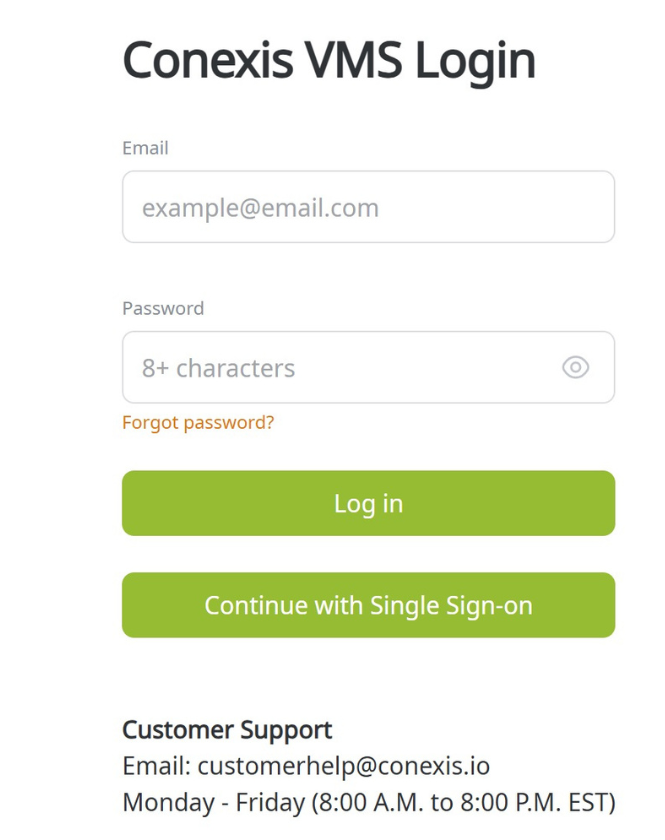
Reference your ‘Welcome to Conexis’ email. Navigate to the Conexis URL linked in the email and log in using your username and password.
If you need help, click “Forgot Password?” or email customerhelp@cornexis.io

Navigation:
- Task cards are shortcuts to the relevant tab, filtered by the rows that require action
- If you have access to more than one Buyer in the system (same URL), toggle between Buyers using the dropdown menu
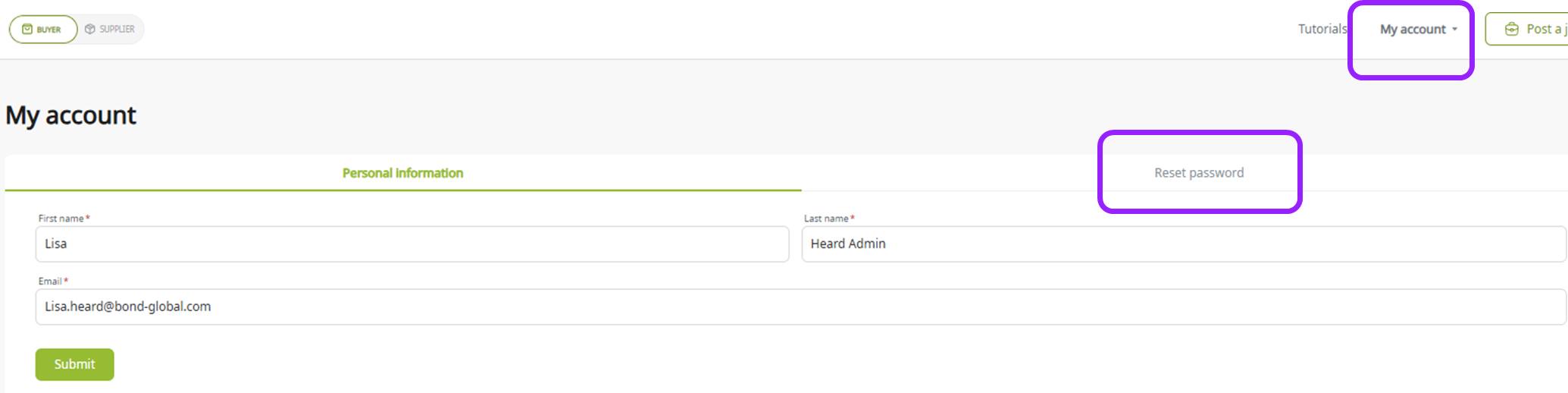
- To change your account details, click “Settings” under “My Account”
- Edit your password in the Reset password tab
Extracting Data
Data from each page can be downloaded in CSV, TXT or JSON format.
GETTING STARTED
Adding Users

Step 1
From the navigation bar toggle down Administration and click Users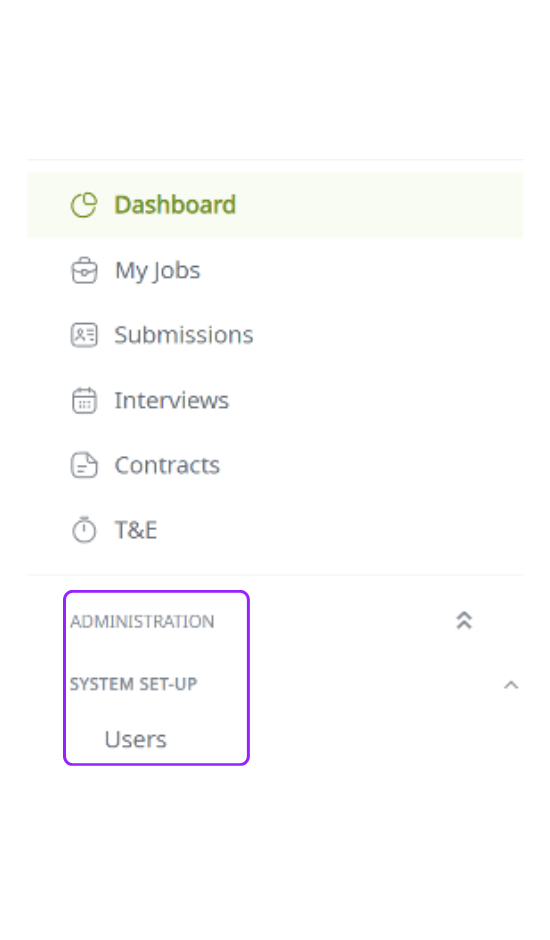
Step 2
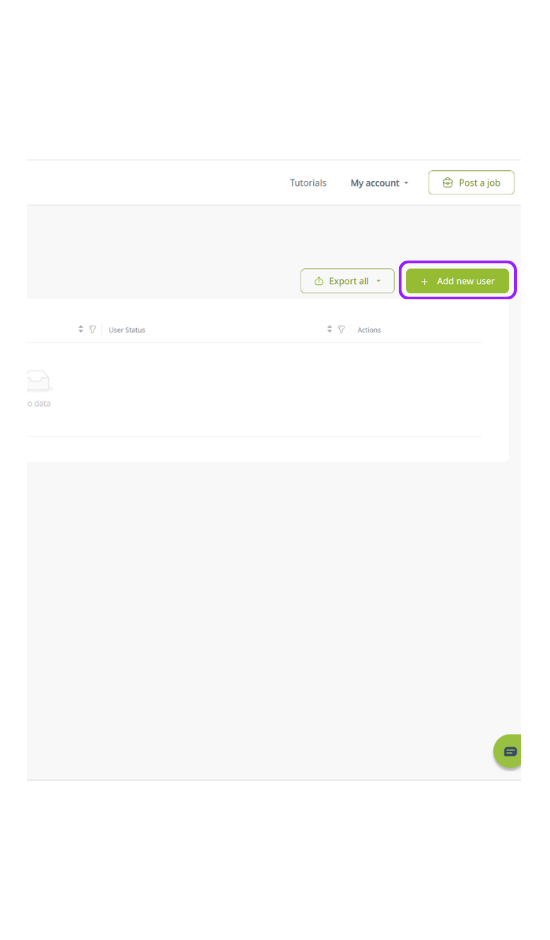
Click the Add new user button in the top right corner of your screen
Step 3
Next, select the appropriate user type from the dropdown selection below 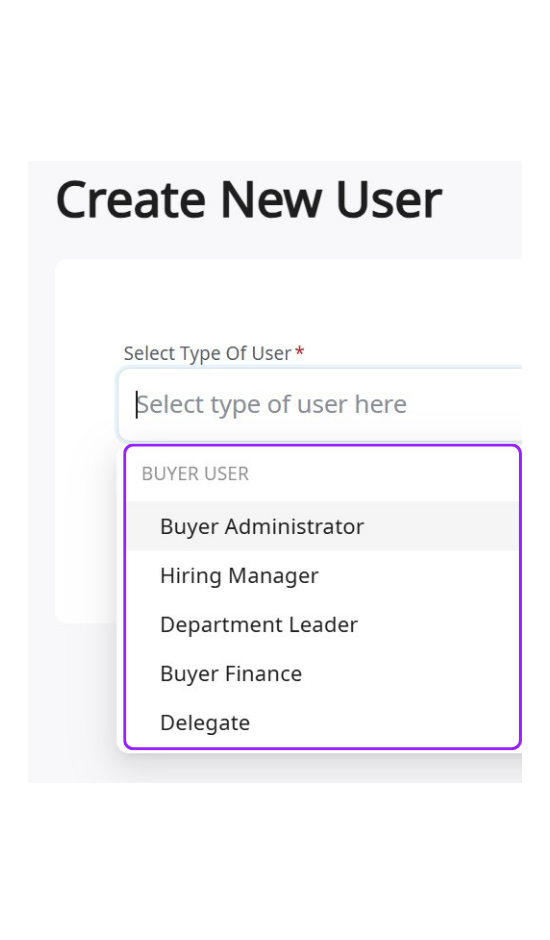
Step 4
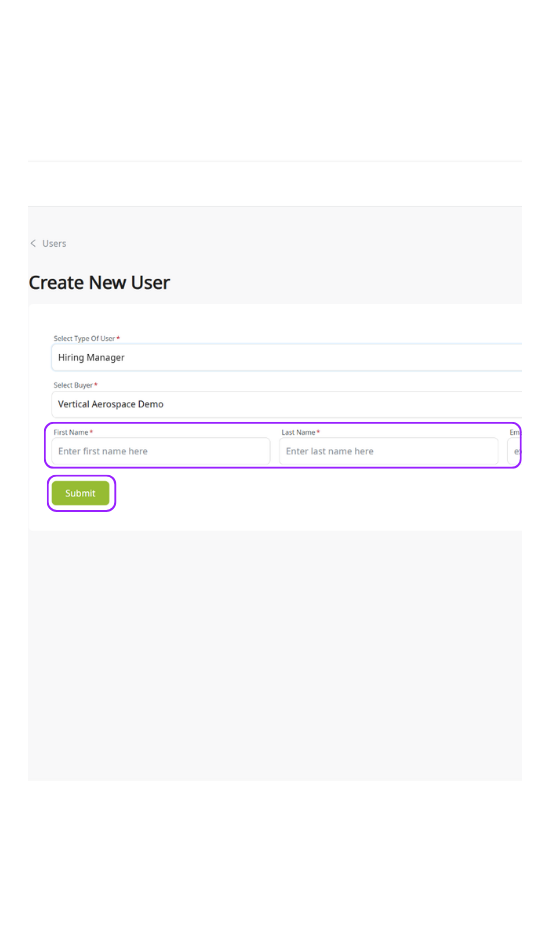
Enter name and email and click submit, to receive a welcome email with login details
GETTING STARTED
Managing Users
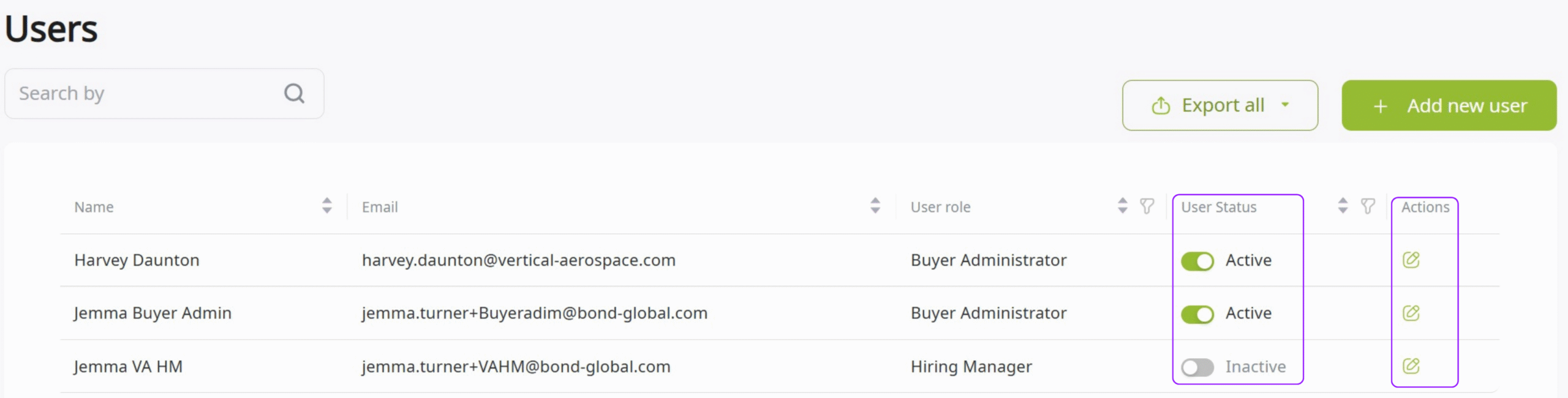
To turn off a Users access, toggle the “user status” to inactive
JOBS, SUBMISSIONS & Interviews
Viewing Jobs
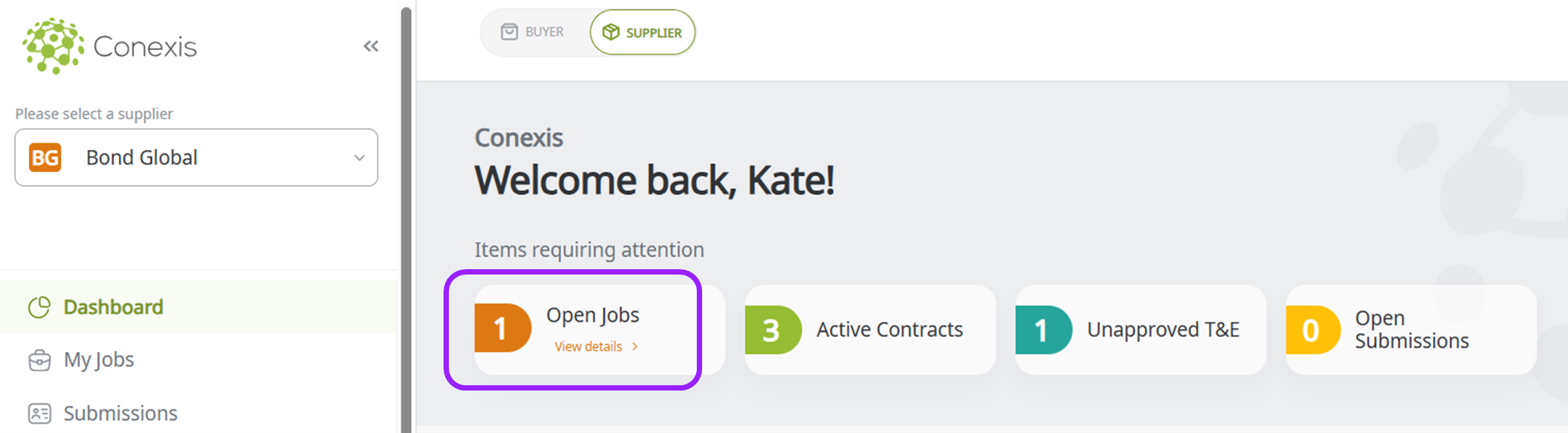
1.Select the relevant Buyer & click the Open Jobs task card to view jobs available for candidate submission
2.Click the chevron next to the Job ID to see the Job details and additional Information

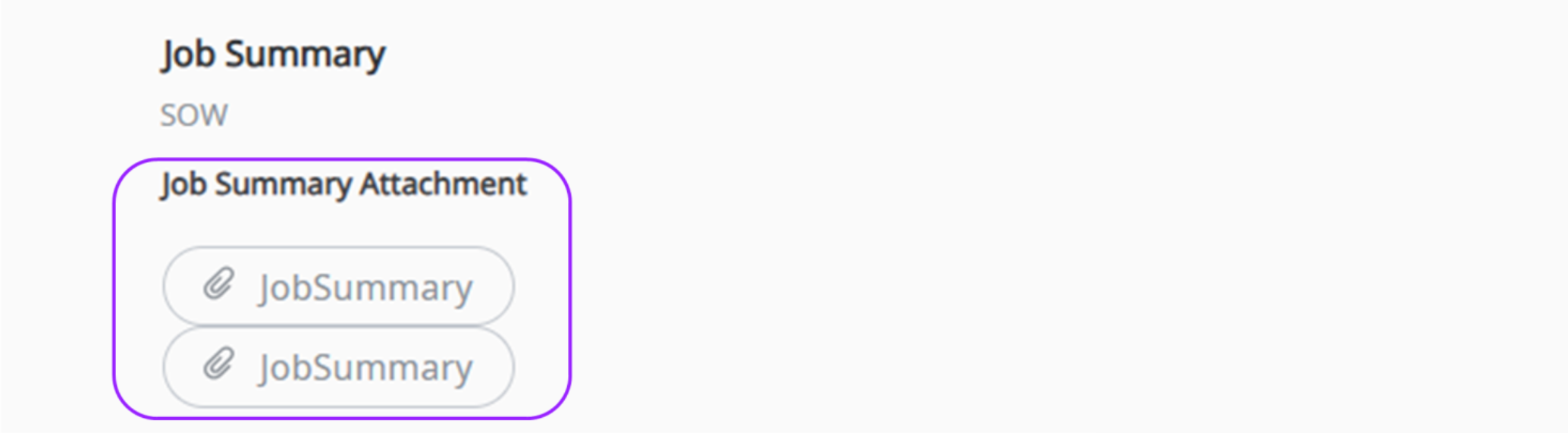
3.View the job details and click the attachment to download the job description
JOBS, SUBMISSIONS & Interviews
Creating Candidates
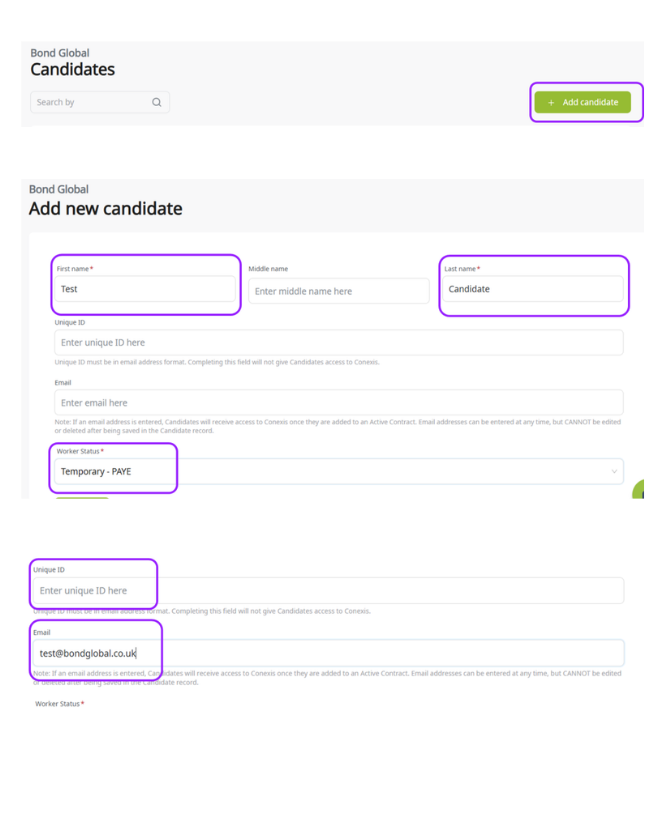
On the left hand side, under the ‘Administration’ dropdown, select “candidates”
Select ‘Add Candidates’ on the right hand side
Enter the details you want to include. Only first name, last name and worker status are mandatory
Entering the email address in the email field will give the candidate access to Conexis.
Including an email address in the “Email” field, will mean the candidate will receive access to Conexis if they are added to an active contract. This cannot be undone.
If instructed by Bond, enter the candidate’s email in the unique ID field
The unique ID field must not have been previously used for another candidate
Click “Submit” to create the candidate. All fields can be edited except email
JOBS, SUBMISSIONS & Interviews
Editing Candidates
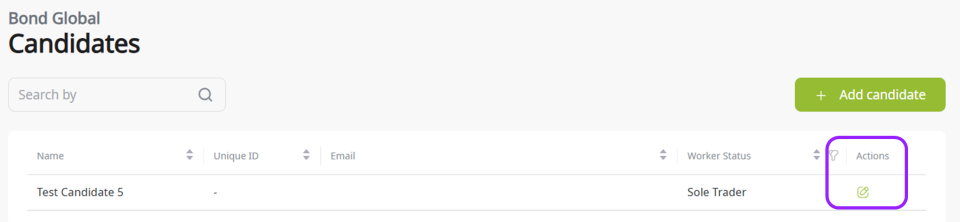
- To edit a candidate, click on the Edit icon on the right
- All fields can be edited except the email address
JOBS, SUBMISSIONS & Interviews
Submitting a Candidate
Candidates must be created before they can be submitted to a job!
- Click on the Open Jobs task card
- Click ‘Add’ for the job you want to create a submission for

3. Open the dropdown or start typing to find the candidate you want to submit
Tip- You can add multiple candidates to one submission for the same job, if the rates are all the same and you do not need to attach a resume

4. Attach a resume and other documentation. Enter the standard rates for the submission
5. Add comments for Bond/Buyer and click “Submit”
Tip- Bond will receive a notification when a new candidate is submitted

6. Viewing of submissions can take place in both the jobs and submissions tabs
7. View the status of the submission in the submissions tab
JOBS, SUBMISSIONS & Interviews
Withdrawing a Candidate
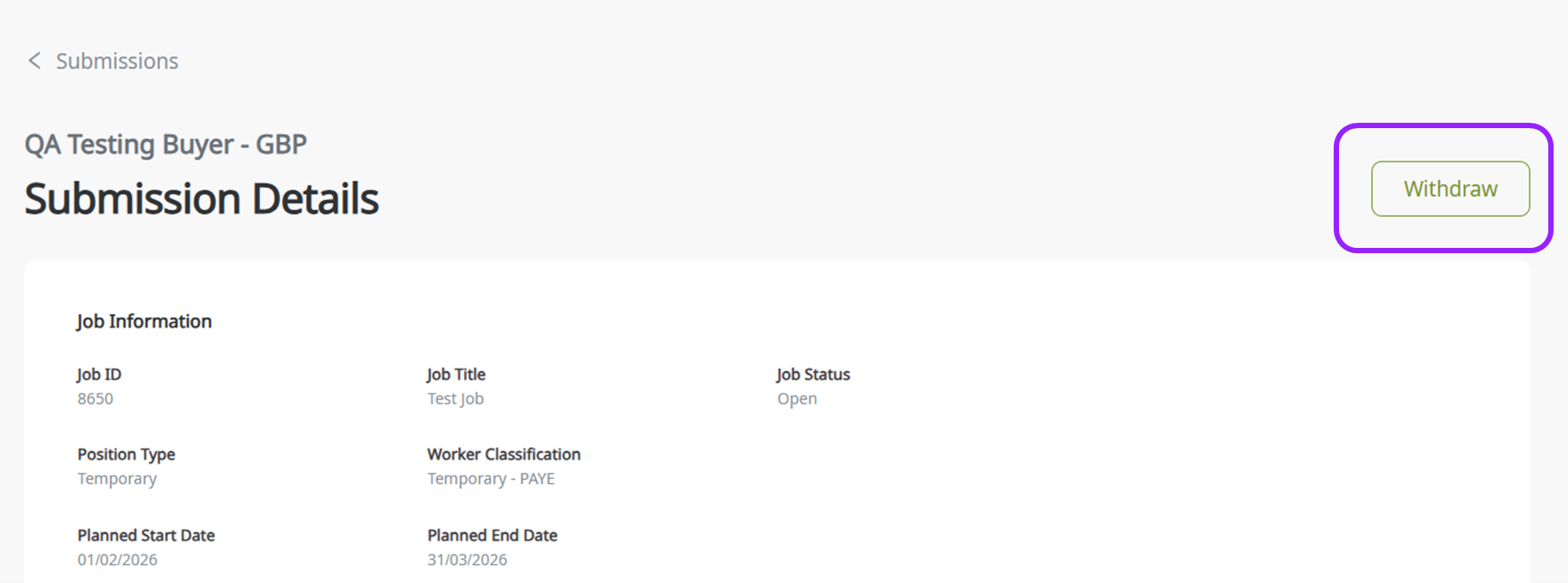
- Click the Submission ID in the submissions Tab
- Click “Withdraw”
- Enter the reason for withdrawal and click “Save”
- All Submissions and their statuses can be viewed on the submissions tab
JOBS, SUBMISSIONS & Interviews
Managing Interviews

1. On the main menu side bar, select “Interviews”
2. Click the chevron to see more details
3. Scroll to the right and click the three dots, then “confirm” to see the proposed interview time slots
4. View interview details and time slot options

5. Select the checkbox for the preferred time slot, enter any comments for the Bond/Buyer, then click “Submit”
Tip- Bond and Hiring Manager(s) will receive a notification when the interview is confirmed. The interview will now be in “scheduled” Status.
6. Once the interview is confirmed with the candidate, send a meeting invitation to the interviewers listed in the request and candidate
7. Once the interview is complete, Bond will change the status to “complete”
JOBS, SUBMISSIONS & Interviews
Cancelling Interviews
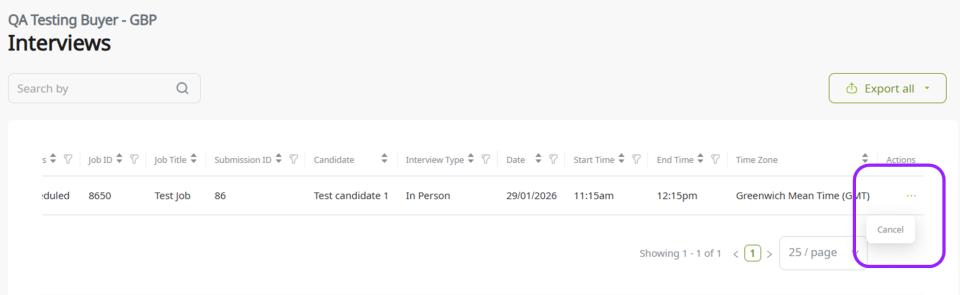
- You can cancel a scheduled interview by clicking the three dots
ONBOARDING & CONTRACTS
Completing Onboarding Activities
Once a submission has been accepted and a contract approved, a formal offer will be available in the Contracts page.
- On the main menu side bar, select “contracts”
- Open the relevant contract and “Accept” or “Reject”

Once the formal offer is accepted a link to Onboarding activities will appear in the submission and contract pages.
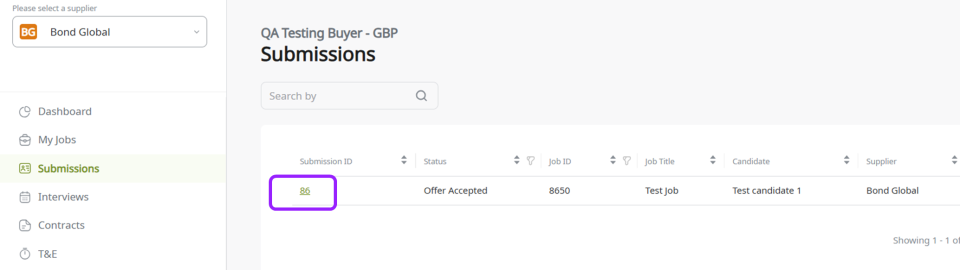

- Open the relevant contract or submission and select ‘Onboarding Activities’
- This will list the onboarding activities required. Click the edit icon on the right hand side, and click to attach any required uploads, then click ‘submit’
- If the activity appears in blue, click to open the hyperlink. You will be directed to another window

4. Once the required documents are attached, click “Ready for Review” to notify the Job Creator and Bond OneView
5. Once Bond OneView reviews the Onboarding Activities, they will mark as complete and, if required enter an expiration date
6. Once all onboarding activities are complete, Bond OneView will activate the contract and the contractor will receive an email with a link to Conexis to enter time and expense
You will not receive a notification when the onboarding activities have been marked as complete
ONBOARDING & CONTRACTS
Viewing & Editing Contracts
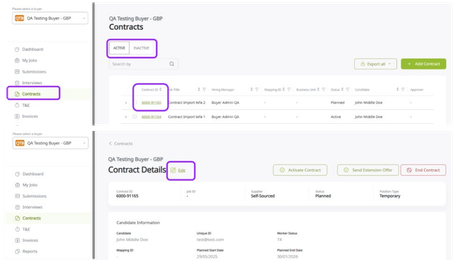
Follow this step-by-step guide to view and edit contracts.
-
On the main menu side bar, select ‘Contracts’
-
Depending on the contract’s current status, you may need to navigate between the active and inactive contract tabs.
Tip- the contracts page defaults to the Active tab, displaying contracts with Active or planned statuses. Contracts with terminated, non-start/cancelled, resigned, or completed statuses will appear under the inactive tab.
-
Click the Contract ID to open the Contract Details page. From here you can View and Edit the Contract details.
-
To edit a contract click Edit, make changes to the necessary fields and then click save.
TIME & EXPENSE & INVOICES
Time & Expense
All contractor timesheets need to be submitted and approved via Conexis.
Bond OneView timesheets deadline is 12pm Tuesday. Please ensure your contractors are aware of your timesheet deadlines.