
Buyers Hub – Vertical aerospace
One System.
One Process.
OneView.
Centralised. Fully Compliant. Completely under control.
Full visibility at the click of a button.
Bond brings every contractor, supplier and process into a single, technology- enabled and transparent Contingent Workforce Solution.
System access and navigation
System access and navigation
Logging in
1. Reference your “Welcome to Conexis” email.
2. Navigate to the Vertical Aerospace Conexis URL using single sign on link provided.
Note: You will not require a username or password.
If you need help email customerhelp@conexis.io
System access and navigation
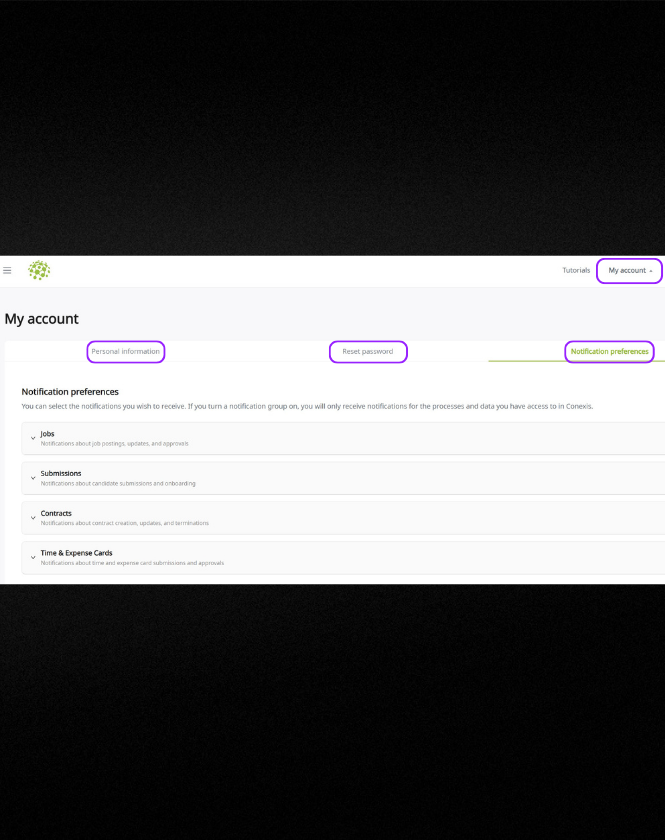
Managing your account
Click “settings” under my account
- Update your personal information
- Reset your password
- Update your notification preferences
N.B – Changes to name or email used for logging on will be reflected throughout the system
System access and navigation
Navigation Tips
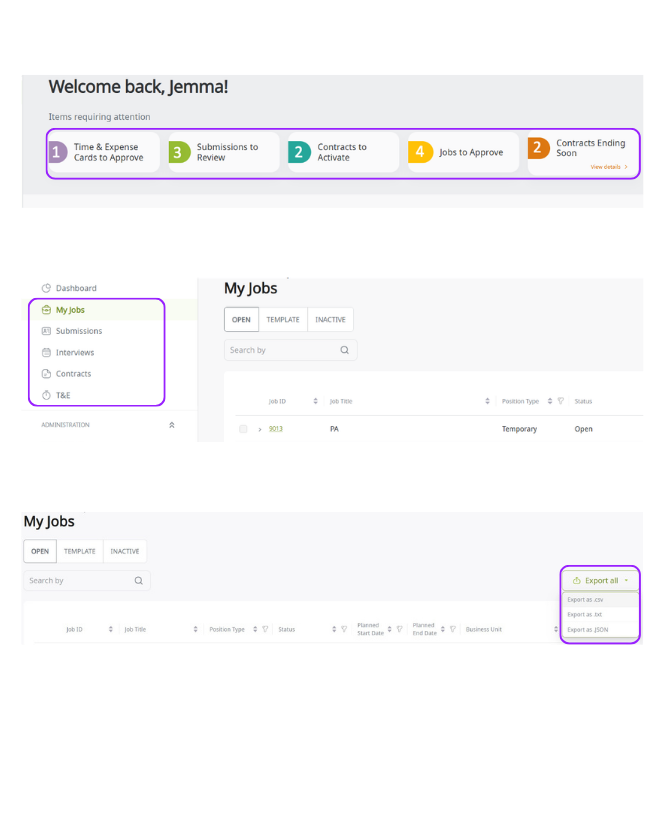
Task Cards
Will be visible at the top of your homepage. They will display items that require your attention. Task cards will vary by user role!
Navigation Bar
From here you can move between your open jobs (MyJobs), submitted candidates (Submissions), Upcoming Interviews (Interview), current contractors’ (Contracts) and time and expense information (T&E).
Exporting Data
In addition to the reporting functionality, data from each page can be downloaded in CSV, TXT or JSON format directly from each page. Simply filter the view and navigate to export all. You can filter each column using the filter icons.
System access and navigation
Adding and managing a user
User Types and Permissions
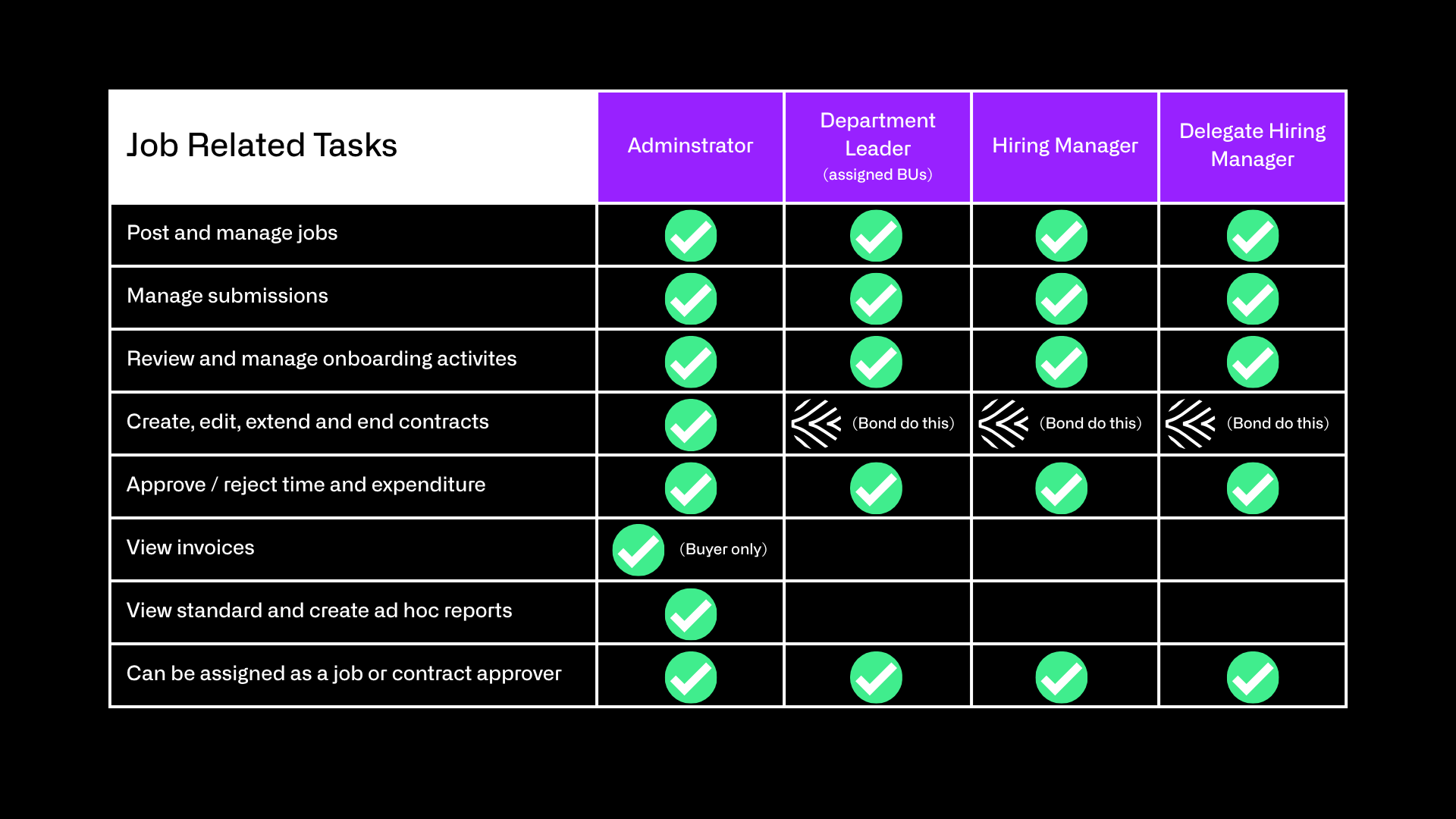
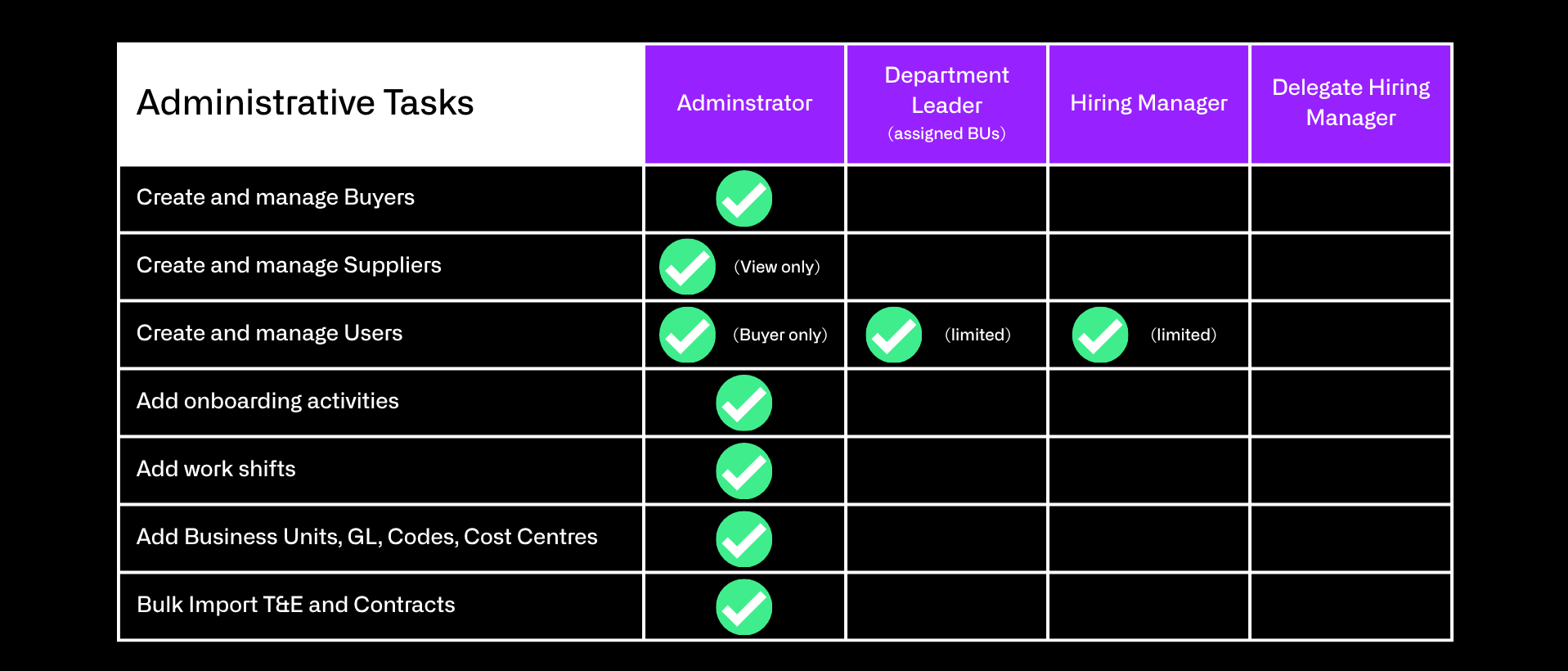
There are 4 user types you can select, the table below outline the permissions within that role.
1. Administrator
Full permissions for all buyer functions
2. Department Leader
Assigned to specific business units, can view the activity for all Hiring Managers within their assigned Business Unit
3. Hiring Manager
Assigned to their own jobs and contracts, can view their own jobs, manage submissions and approve T&E for their workers
4. Delegate Hiring Manager
Similar to Hiring Manager but assigned to specific Jobs and contracts
Adding a new user

Step 1
From the navigation bar toggle down Administration and click Users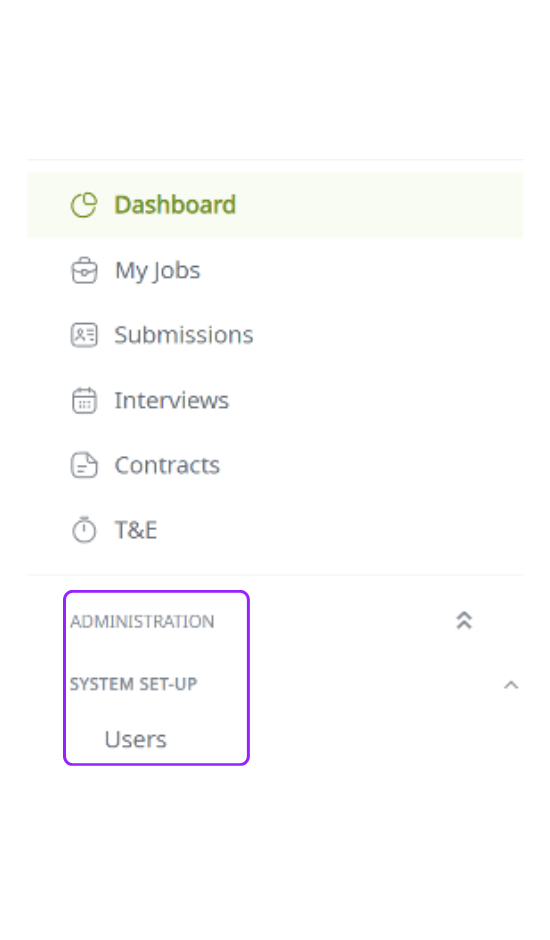
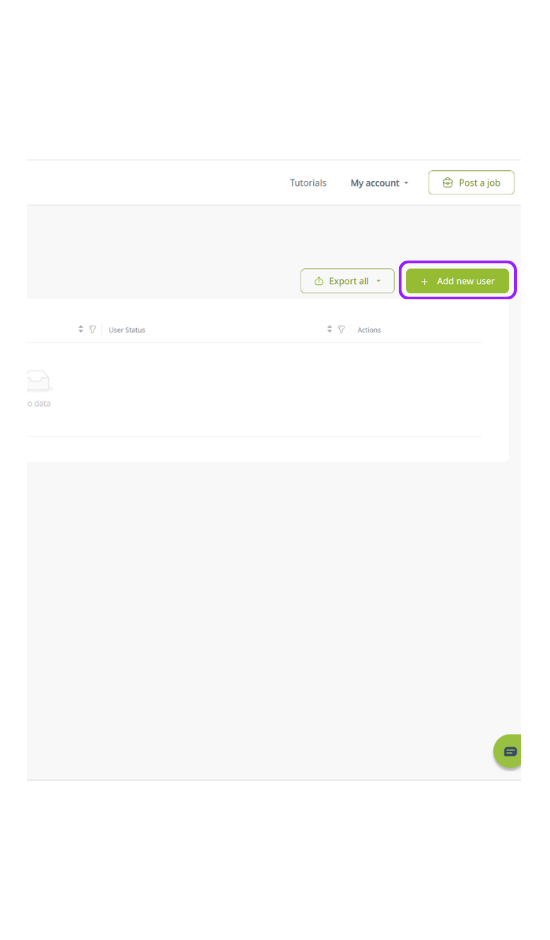
Step 2
Click the Add new user button in the top right corner of your screen
Step 3
Next, select the appropriate user type from the dropdown selection below 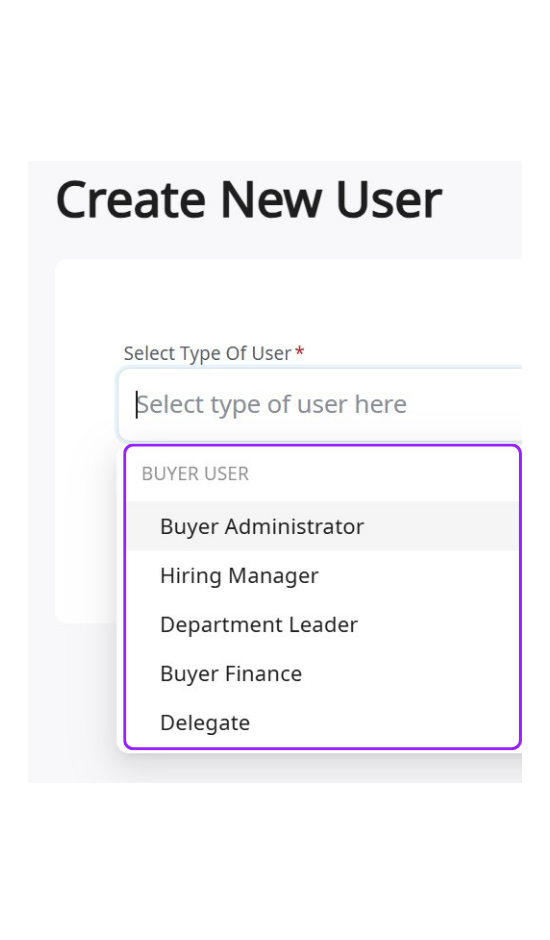
Step 4
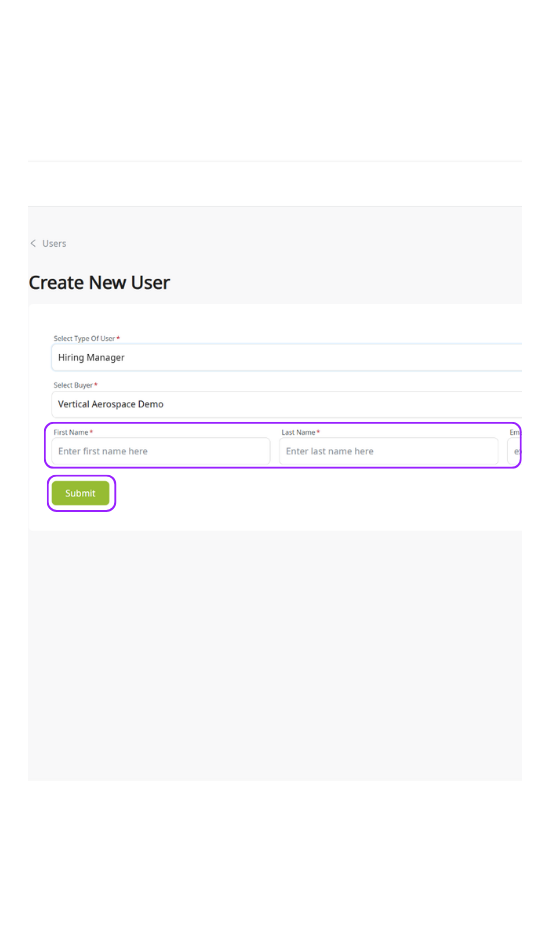
Enter name and email and click submit, to receive a welcome email with login details
Managing Users
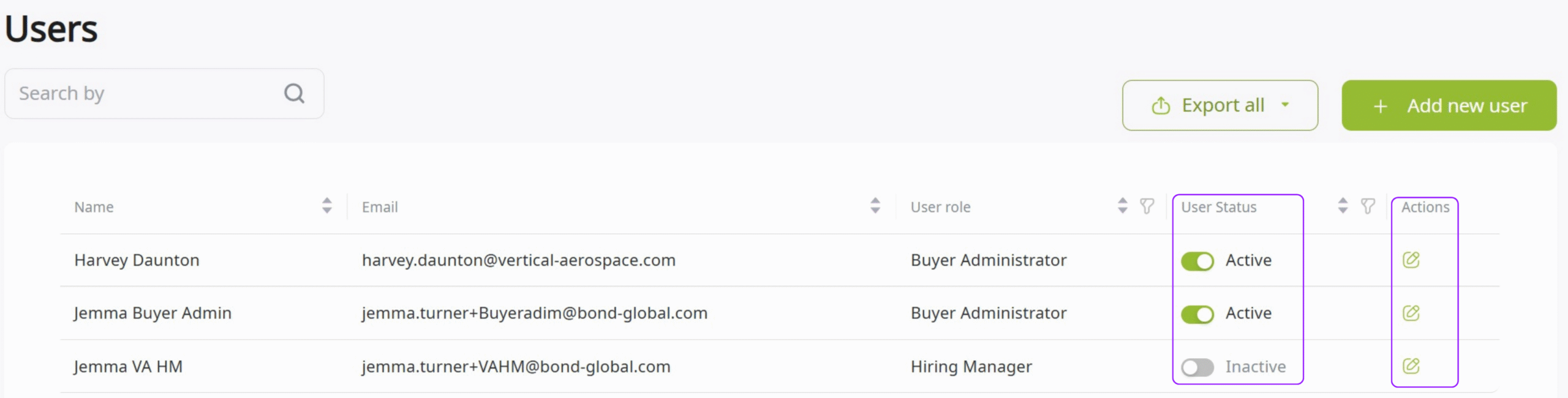
1. To turn off a Users access, toggle the “user status” to inactive
2. To edit a user, click the edit icon in the actions column
⚠️ At least one activate Admin user should be maintained! ⚠️
All user information can be edited after the User is created.
hiring & Offers
Worker Classification
Before adding a job to the system it must be assessed for IR35 purposes. To ensure Bond, our clients and suppliers remain compliant with UK tax legislations.
-
A role is in scope of IR35 when services are provided by an individual through an intermediary (such as a Personal Service Company), and the working arrangement could be considered employment-like if the intermediary did not exist.
In simple terms, IR35 may apply where:
- The worker provides services via a limited company or similar intermediary, and
- The nature of the engagement suggests the individual is working more like an employee than an independent contractor.
If the role is not delivered via an intermediary, or clearly falls outside IR35 legislation, it may be deemed out of scope.
-
If the role is in scope of IR35, a formal status determination must be completed to confirm whether the engagement is:
- Inside IR35 – the role is considered employment-like for tax purposes and is subject to Agency Worker Regulations (AWR). Please complete the AWR Formor
- Outside IR35 – the role is considered a genuine business-to-business engagement.
This assessment must be completed before onboarding and prior to adding the job to the system
-
All determinations must follow internal protocol, which will typically involve:
Completing the assessment via Bond’s Kingsbridge portal, where applicable
The outcome of this process must be recorded and retained as part of the onboarding audit trail.
Click here for our IR35 guidance document
If the role does come inside IR35 please fill out at AWR Form.
hiring & Offers
Posting a job
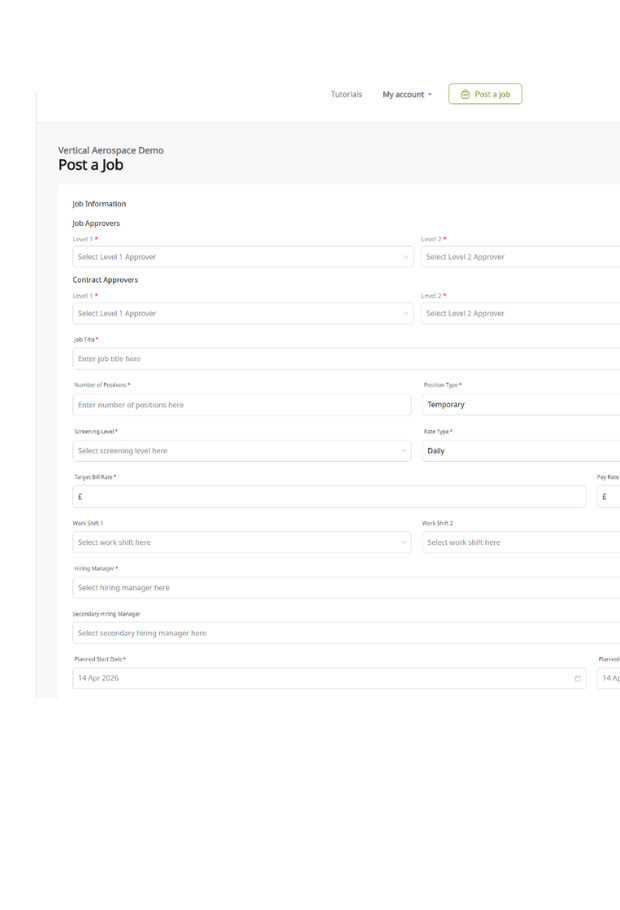
Administrators, Department Leaders, Hiring Managers and Delegate Hiring Managers can post jobs for themselves, or on behalf of another user.

This button is available in the right top corner of any page.
Steps:
1. Select the correct approvers (Level 1: Budget Holder Level 2: Finance)
2. Enter the Job information
3. Upload the job description and IR35 SDS (If applicable)
4. Select the hiring Manager from the drop-down. Note: the hiring manager will be responsible for Candidate Submissions and Time & Expense approvals
5. Select a secondary manager. Note: the Secondary hiring manager is responsible for approving time and expense when the hiring manager is not available
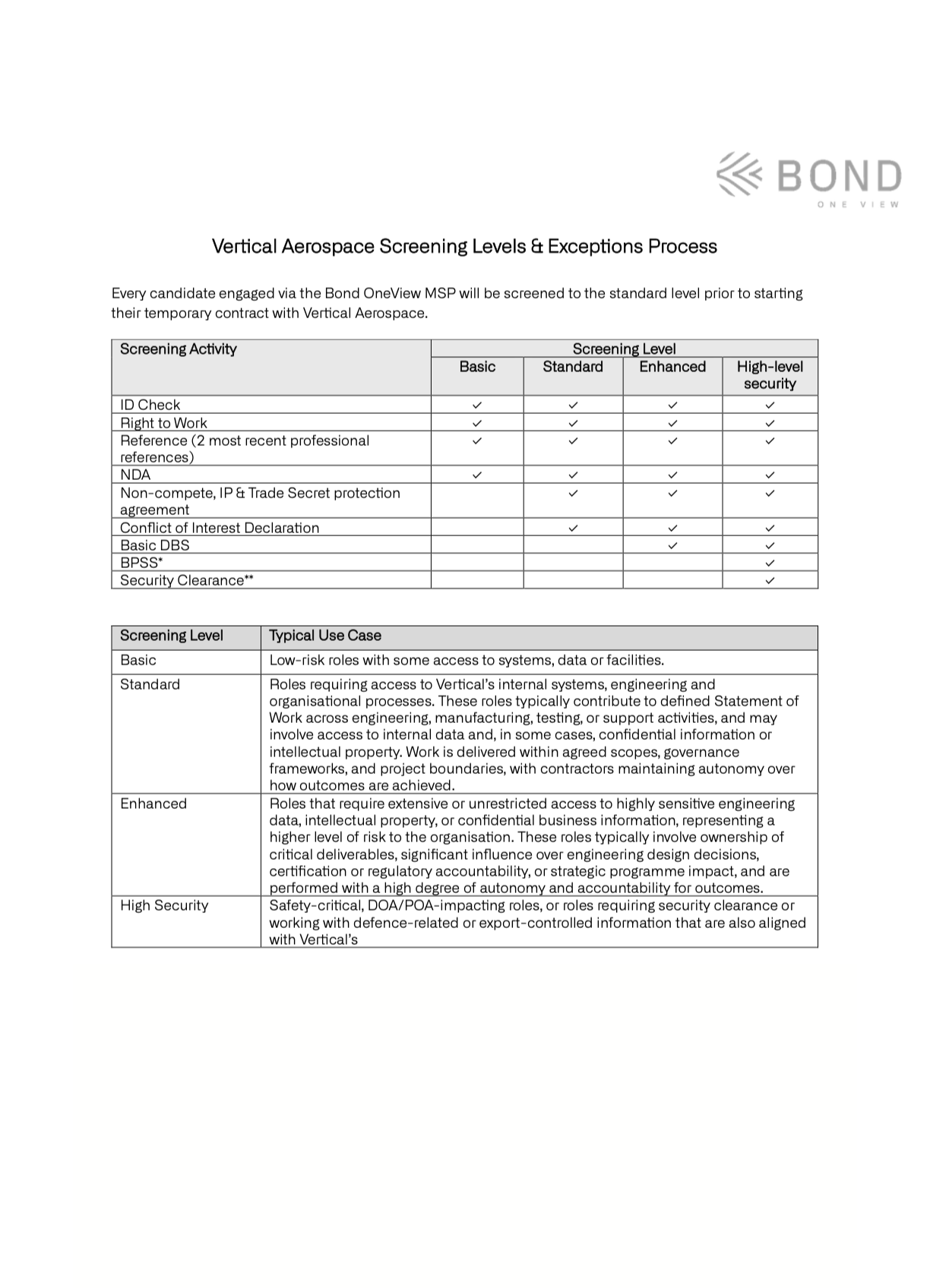
6. Select screening levels
7. Select the supplier(s) you would like to support the role
8. Press send now to go for approval

hiring & Offers
Job/Contract Approval
Note: You are unable to approve your own jobs
-
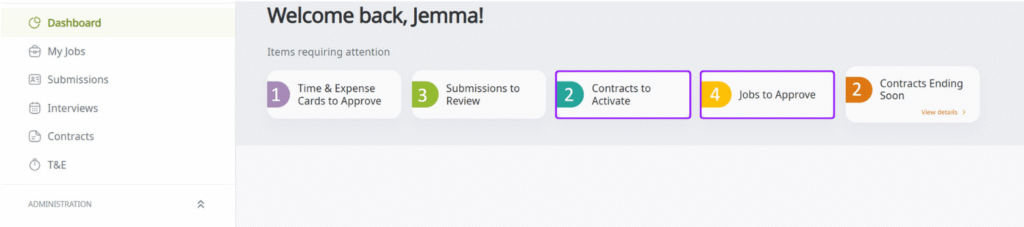
If you have been added as an approver on a job, you will receive an email notification to approve either a new job requisition or a contract for a new hire or extension. You will also see the pending action(s) on your task card.
-
From the task card navigate though to the job or contract details page where you will be able to review the job requisition or contract details and either Approve or Reject .
Job requisitions and contract requests will always go through two levels of approval
1. Budget holder2. Finance -
Once the job requisition is fully approved it will be released to the selected supplier(s) for sourcing.
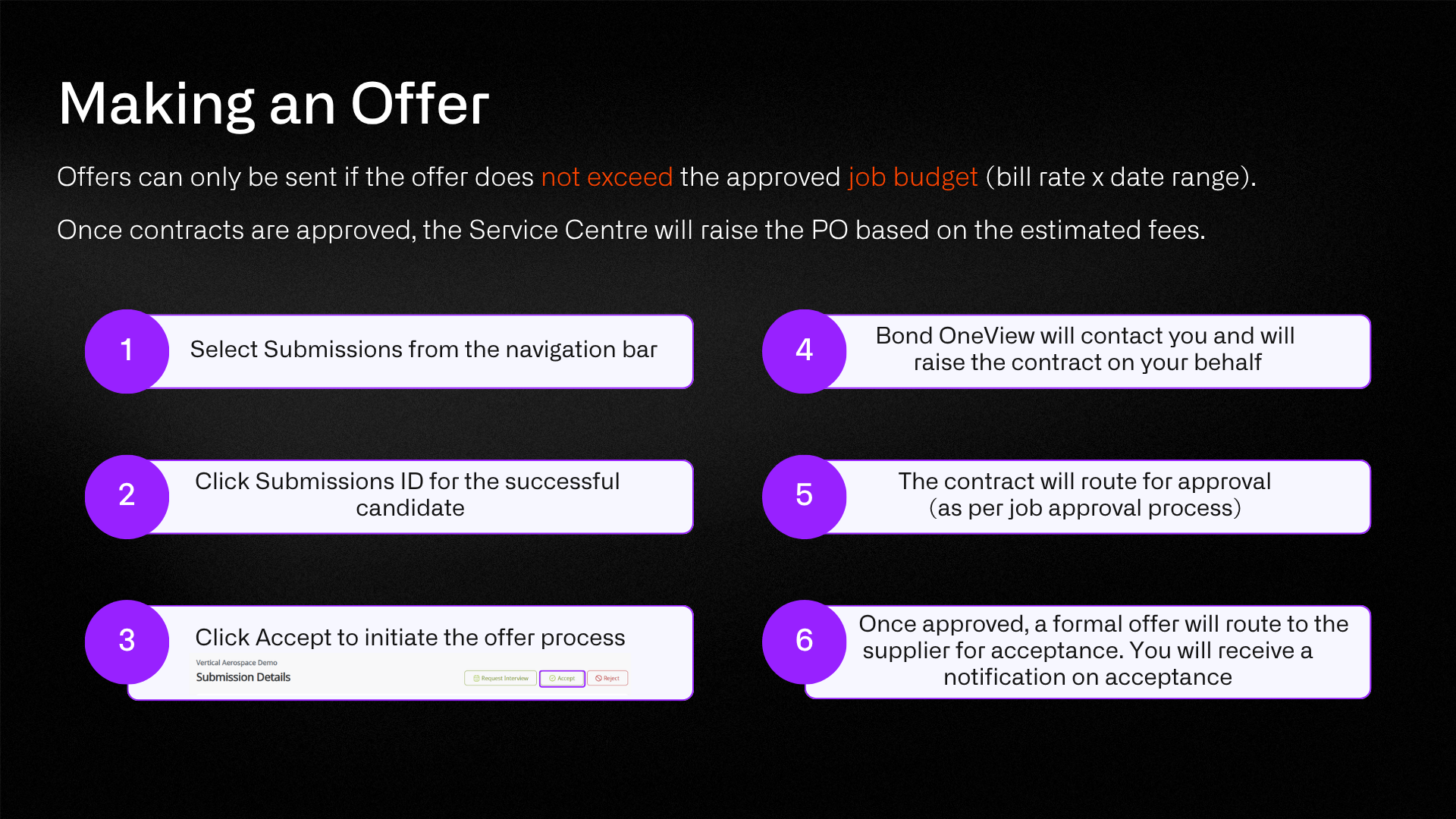
Once the contract is fully approved it will route to Bond OneView for review before the formal offer is sent to the supplier.
HIRING & OFFERS
Submission Reviews
When the selected supplier(s) submit a candidate(s), the job creator and/or Hiring Managers will receive an email notification to review submissions. The action will also appear in your task card.
1. Click the Submissions to Review task card
2. Click the Submission ID to open the candidate details
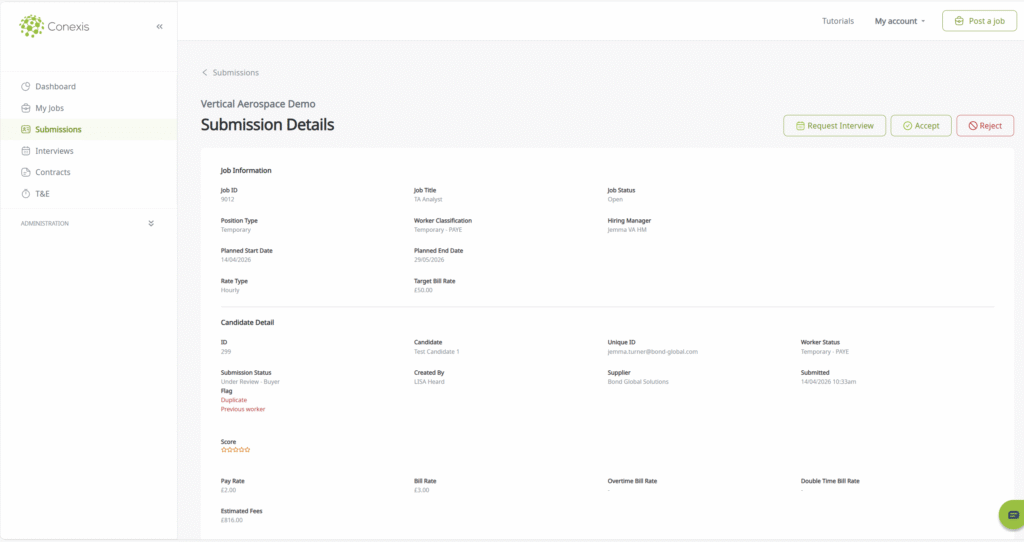
On the submission details page, you can view the charge rate and candidate’s CV.
You will then need to select either:
1. Request interview
2. Accept (and proceed to hire)
3. Reject

HIRING & OFFERS
Requesting an Interview
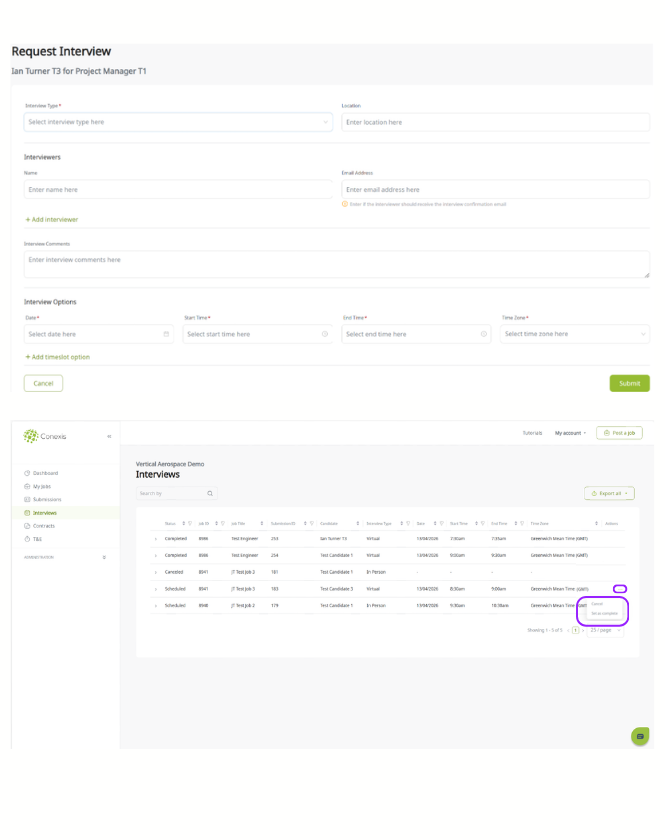
If you would like to request an interview with a submitted candidate:
- Select Request Interview
- Complete interview detail info
This will then be sent to the relevant supplier. The supplier will confirm availability with the candidate and send you an invite for the interview.
Tip! You can add multiple interviewers and multiple slots for availability.
After the interview, mark the interview as complete by going to the interview tab from the navigation bar, selecting the three dots and selecting mark as complete.
ONEView model
Onboarding & Contracts
Onboarding
Over to Bond OneView to manage the compliance:
- Bond OneView will confirm the offer detail and SDS with the supplier and track the relevant onboarding activities
- The supplier will gather and upload all onboarding compliance documents into Conexis
- Bond OneView will review all attached documents to ensure validity and completeness and tag all expiry dates
- Once onboarding activities are completed and a PO confirmed Bond OneView will activate the contract
⚠️ Contracts cannot be activated unless all the worker’s screening compliance is complete and an active PO provided. ⚠️
Finalising SDS- where applicable
If the role falls within IR35 (worker classification contract– Inside IR35, Contract – Outside IR35) you will need to finalise your SDS assessment and check there have been no changes to the role.
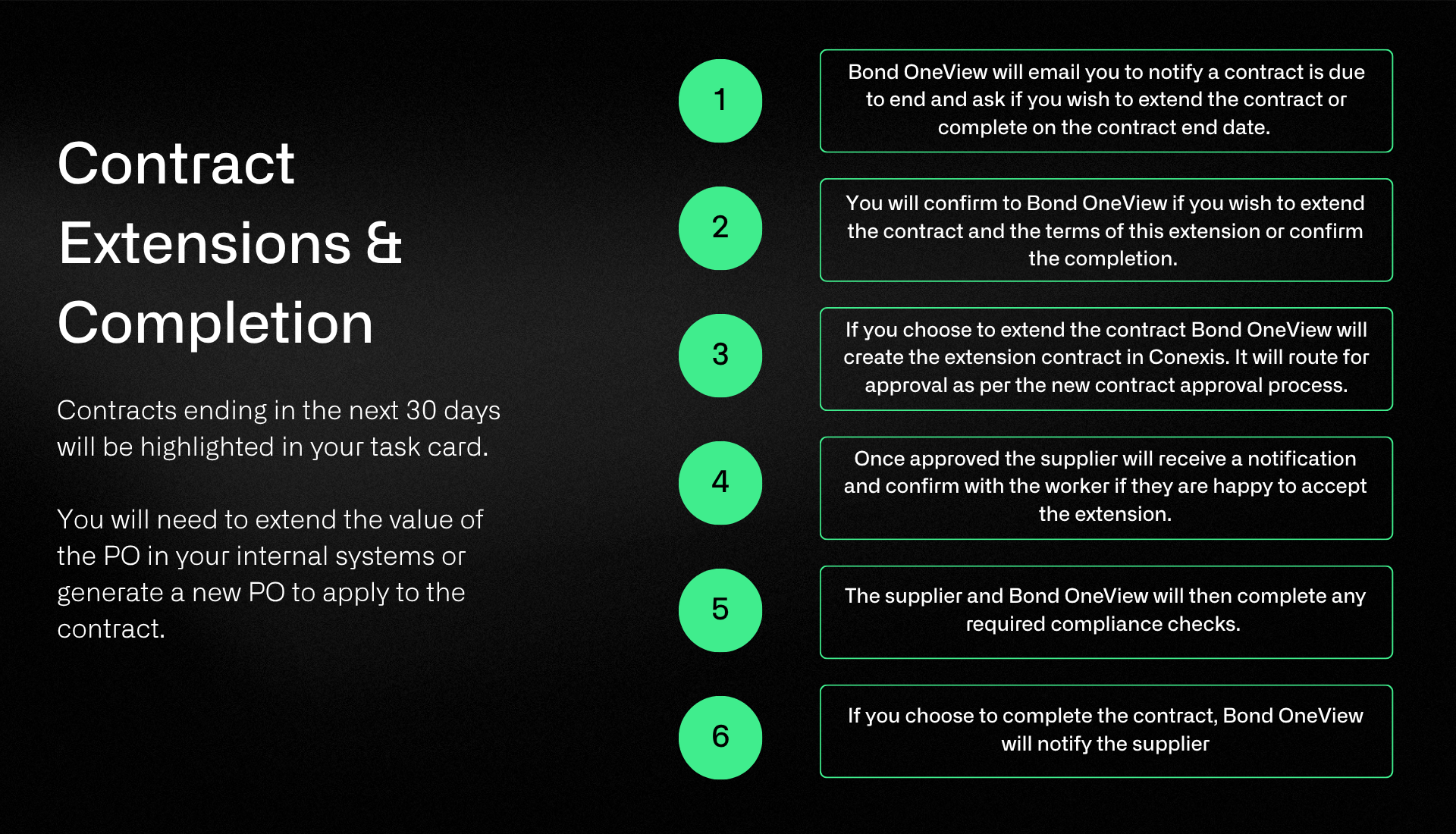
You will need to extend the value of the PO in your internal system or generate a new PO to apply to the contract.
ONBOARDING & CONTRACTS
Terminations mid-contract
If you wish to terminate a contract mid-term, please email details of the termination to vertical aerospace.oneview@bond-global.com
Bond OneView will confirm with you the notice required as part of the contract and proceed to notify the supplier by email and via Conexis.
ONEView model
Time & Expense
Timesheets need approving by 12pm Monday!

Time & Expense
Approving Time Sheets
When a contractor submits a time or expense card, you will receive an email notification.
You can also view all time and expense cards due for approval in your Task Cards. You can approve these directly on the email or via the Conexis system.
To review the time or expense card , select the Task Card or the link on your email. If you have more than one timesheet to approve, click into the timesheet ID to see the details.
From here you have the option to Approve, Request Changes or Reject
Tip! If you have multiple timecards to approve you can select the radio button against each timecard and click approve
Time & Expense
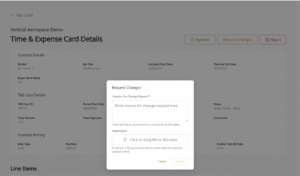
Requesting Changes
If a submitted timecard needs amending, select Request Changes. Input the reason for them to edit and resubmit.